Boards
A visual canvas inside the project for architecture diagrams, process flows, workshop notes, and anything better drawn than written. Boards keep visual thinking next to the structured context instead of in a separate whiteboard tool.
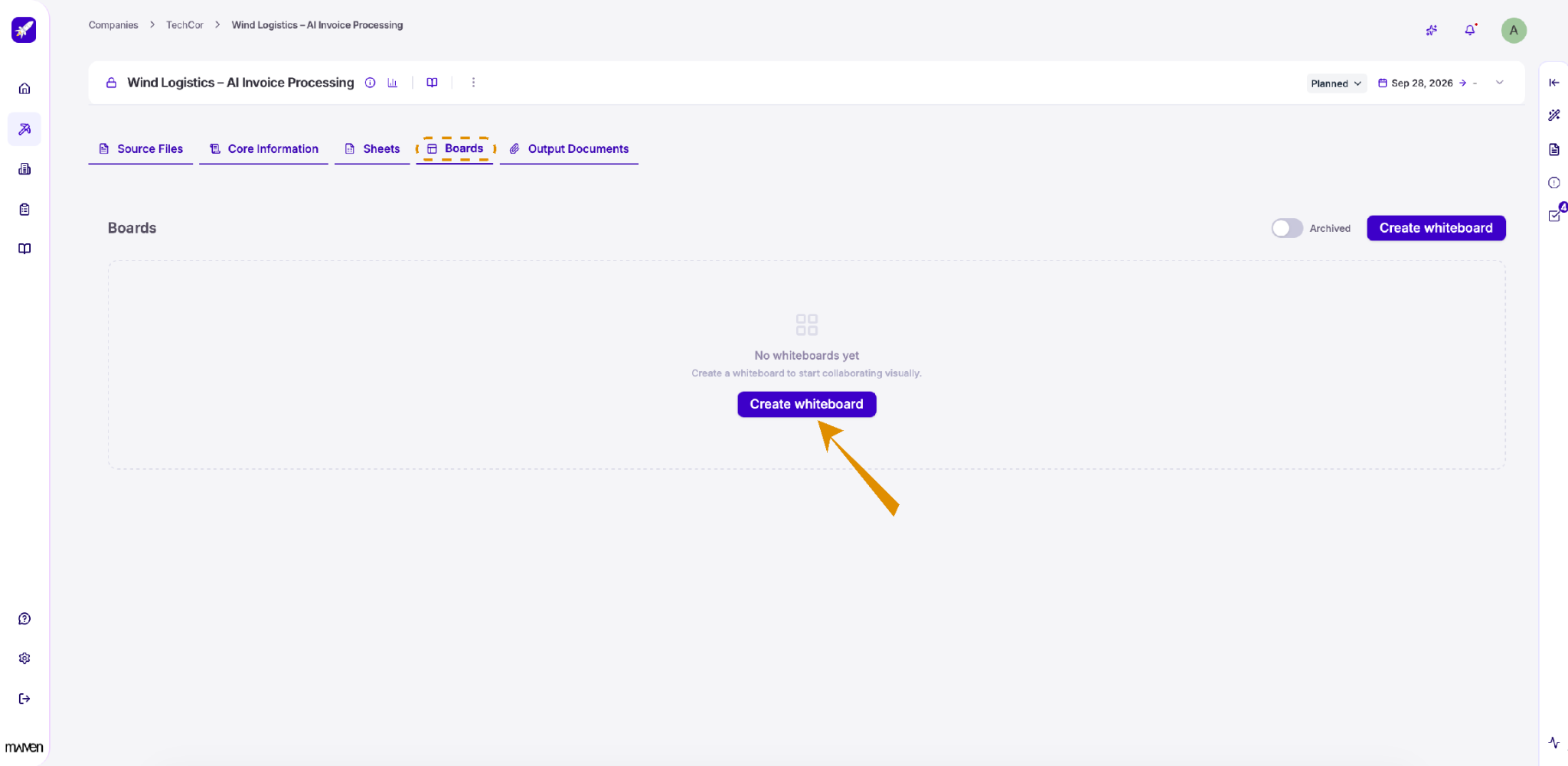
Use Boards to brainstorm, map out ideas, and collaborate visually with your team. Open the Boards tab and click Create whiteboard to get started.
To see whiteboards you've archived, turn on the Archived toggle.
Use the whiteboard
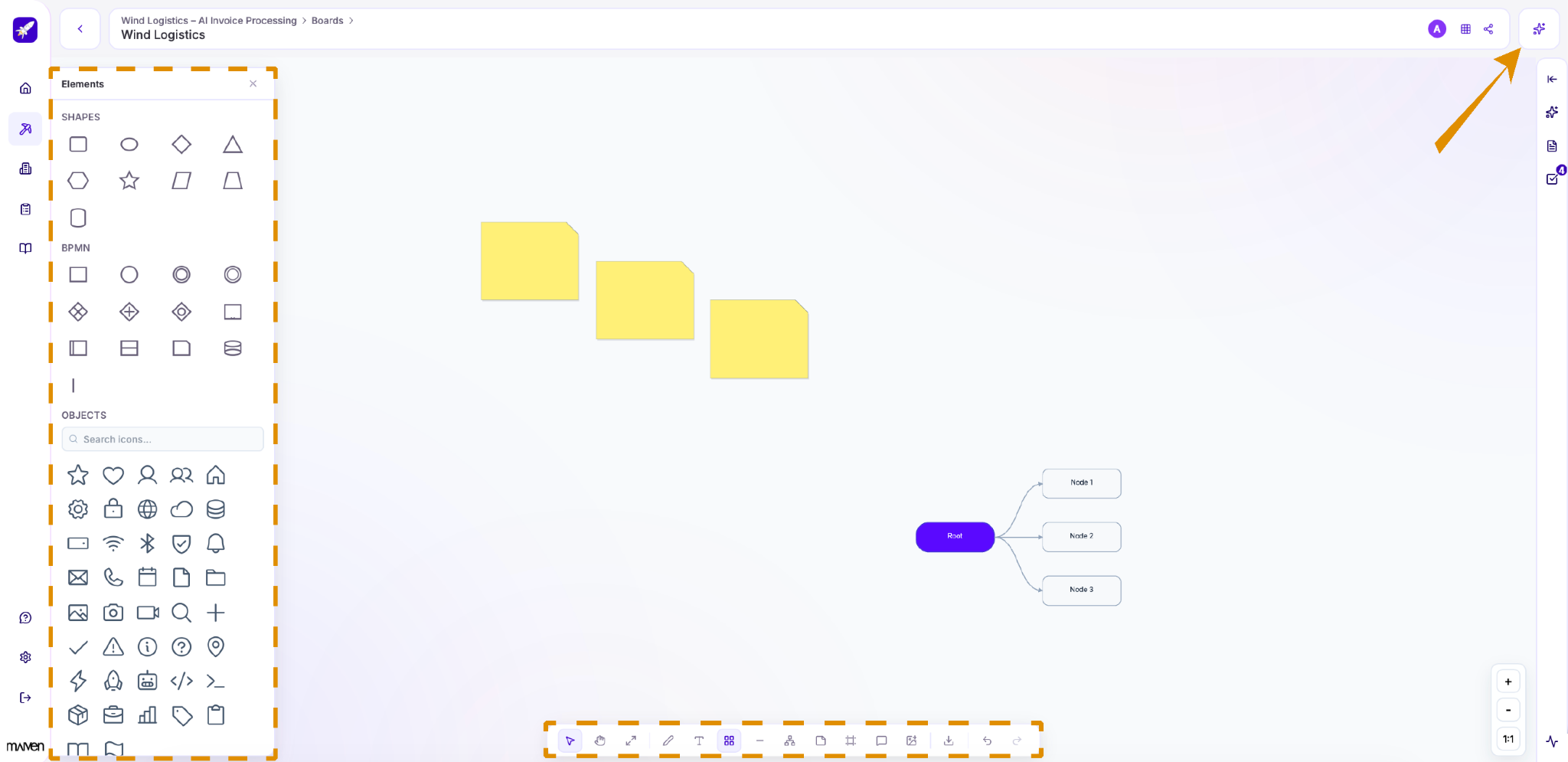
Your whiteboard gives you an open canvas to sketch ideas, map processes, and build diagrams with your team.
Toolbar. The toolbar at the bottom of the canvas has everything you need to create content: select and move items, pan around the canvas, draw freehand, add text, lines, mind maps, sticky notes, frames, comments, and images. You can also export the board, and undo or redo changes.
Elements. Open the Elements panel from the toolbar to add basic shapes, BPMN symbols for process diagrams, and a library of icons. Use the search field to quickly find the icon you need.
AI assistant. Click the sparkle icon in the top-right corner to get help from AI, for example to generate or expand content on your board.
Turn board elements into tasks
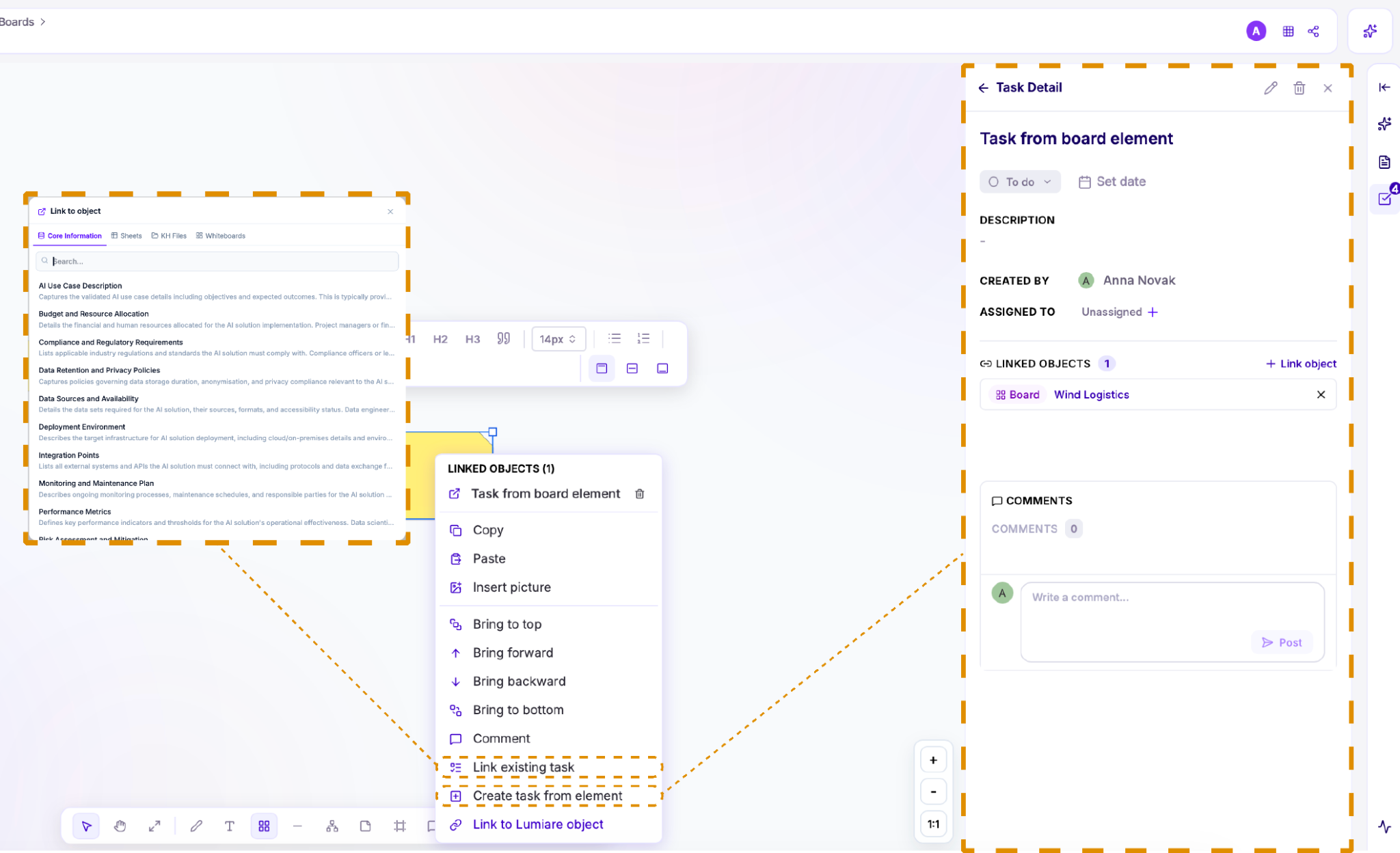
Right-click any element on your whiteboard, such as a sticky note, to open its menu. Choose Create task from element to turn it into a task. The task opens in the Task Detail panel, where you can set its status and due date, add a description, assign it to a team member, and leave comments. The task is automatically linked to your board.
Link elements to project items
You can connect any board element to the rest of your project. When linking to an object, a window opens where you can browse items by type: Core Information, Sheets, KH Files (Knowledge Hub files), and Whiteboards. Use the search field to find what you need, then select it to create the link. Linked items appear at the top of the element's menu under Linked Objects, so you can open them with one click.
From the same menu, you can also:
-
Link to Lumiare object: Connect the element to a datapoint, sheet row, or other project item.
-
Comment: Leave a comment directly on the element.
-
Arrange elements: Use Bring to top, Bring forward, Bring backward, and Bring to bottom to control which elements appear in front.
All linked items are listed at the top of the menu under Linked Objects.